You have started a large delivery and want to pack up. The progress bar is still moving. Before closing the laptop, check what is doing the uploading and whether the transfer has actually finished. A file selected in the browser is not yet a file your client can collect.
What happens when you close the laptop lid?
The result depends on the computer’s power settings and setup, so do not assume that closing the lid leaves an upload running. Sleep can interrupt the browser’s work and its network connection.
For HeftySend browser uploads, the upload troubleshooting guide says to keep the tab open and the device active until the upload finishes and the link is generated. Closing the tab, navigating away or putting the device to sleep can cancel that upload. This article does not promise automatic upload recovery.
Use the conservative approach for an important delivery: leave the lid open, connect power and wait for completion. If you need to leave with the laptop, allow time to finish or arrange a later transfer from a suitable connection.
Is switching off the screen the same as sleep?
No. The display can be off while the computer remains awake, but a separate timer can still send the computer to sleep later.
| Action | What to check before uploading |
|---|---|
| Dim or turn off the display | Check the system sleep timer separately. |
| Lock the screen | Keep authentication protection; check whether an idle sleep timer will still apply. |
| Close the lid | Check the lid action and supported computer setup. Do not assume it matches display sleep. |
| Close or refresh the upload tab | Wait until the transfer has finished. An active browser upload depends on its page. |
| Shut down or restart | Finish and verify the delivery first. |
Avoid using a blank screen as evidence of either success or failure. Return to the transfer page and read its actual status.
Which Windows settings should you check?
Check the sleep timeout and the lid action separately, including the settings for plugged in use and battery use.
Microsoft’s Windows 11 power guidance places screen and sleep timeouts under Settings, System, Power & battery. The screen timeout and device sleep timeout are separate controls. Labels can vary with the installed version and device.
Keep the lid open for the transfer unless you have checked how your particular setup behaves. Plugging in power alone does not prove sleep is disabled. On a work laptop, ask IT about approved settings if the controls are managed. Restore your usual energy saving settings afterwards.
Which Mac settings should you check?
Check Battery options for automatic sleep on power, while keeping the lid open during the browser upload.
Apple’s sleep and wake guidance describes an option in System Settings, Battery, Options that prevents automatic sleep on the power adapter while the display is off. Some options depend on the Mac. That setting describes display inactivity; do not treat it as a guarantee that closing the lid will leave your upload running.
The video below discusses keeping a Mac awake for long tasks, including optional utilities. It is background from Hands On Tech, not a HeftySend test. Start with the built in settings and your organisation’s policy; you do not need to install a utility to follow the open laptop checklist in this guide.
Watch Hands On Tech explain keeping a Mac awake.
What should you do before a long upload?
Prepare the power, connection and files before starting, then leave the active upload alone while it makes progress.
- Check the complete delivery size and that the source files are available locally.
- Connect power and keep the laptop on a suitable ventilated surface.
- Keep the lid open and review the sleep timeout for the power source you are using.
- Choose a stable connection. Avoid planning to change networks midway through the upload.
- Leave the upload tab open. Do not restart the browser or refresh a moving transfer.
- Wait for completion, check the resulting link and then restore your normal power settings.
For example, if you must leave the office at 17:00, do not start a large delivery at 16:55 and assume it will continue in your bag. Use the file transfer time calculator before starting and reserve time for checking the result. Our slow upload guide explains connection limits and delivery timing in more detail.
When can you safely close the sender’s laptop?
For a completed hosted transfer, close the sender’s laptop after checking that the link is ready and the expected files are available.
Open the completed HeftySend link, check the filenames and inspect a supported preview where appropriate. Give the recipient a collection deadline. The sender’s browser does not need to stay open simply so a recipient can collect an already completed hosted delivery. If you operate your own storage server, that server must remain available separately.
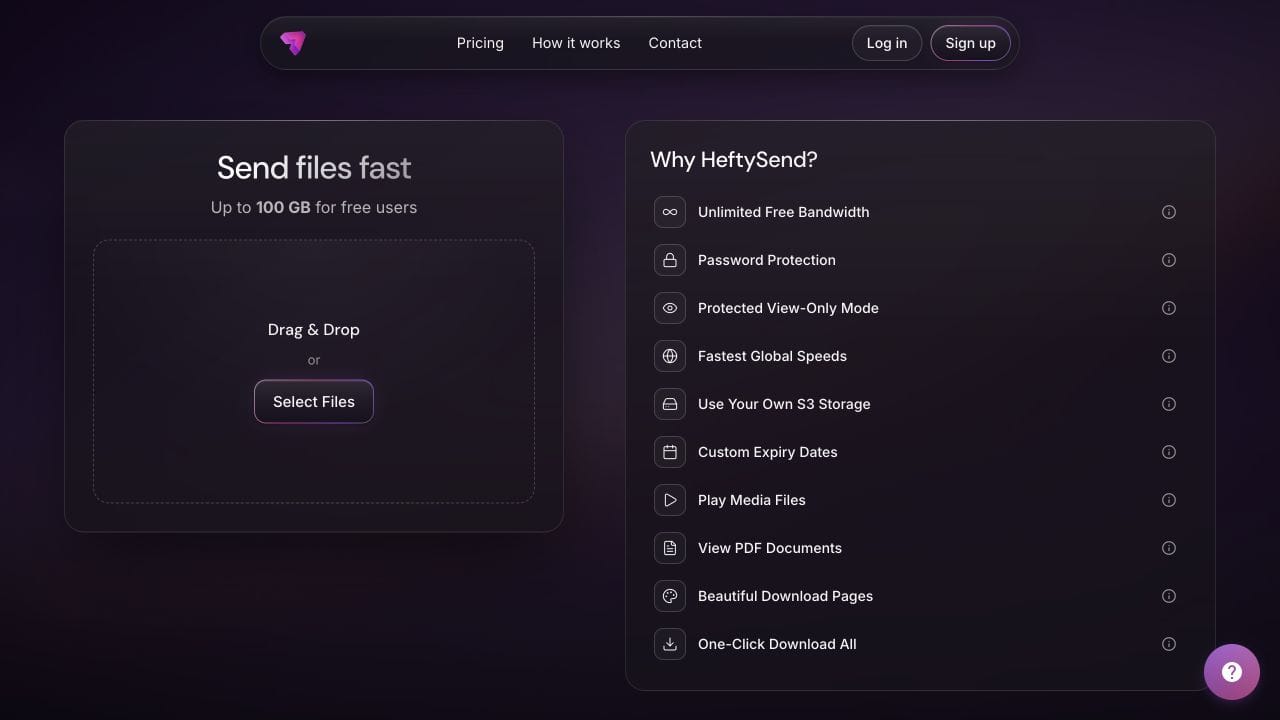
HeftySend’s homepage checked on 20 October 2026 lists up to 100 GB per free transfer with three day expiry, supported media and PDF previews, and no HeftySend bandwidth charges. Those benefits help with delivery after the upload; they do not prevent your laptop from sleeping.
Paid plans offer custom download pages for a clearer branded handover. If you connect your own storage, the provider’s storage, request and delivery charges remain separate. Check current HeftySend plans for capacity and availability that suit the package.

What if the laptop already went to sleep?
Wake it, restore the connection and inspect the transfer’s status before doing anything else. Do not tell the client the delivery is ready unless you have verified the completed link.
If progress continues, leave the attempt open. If it reports failure or remains stuck, follow the service’s troubleshooting guidance and keep your original files. Record the error and approximate time if you need support. Do not assume that every browser, desktop app or service resumes from the same point.
HeftySend’s desktop app is advertised as resuming recipient downloads after a dropped connection. That is a download feature, not evidence that an unfinished browser upload survives sleep. Always distinguish the sender’s upload from the recipient’s download.
Frequently asked questions
Does connecting the charger prevent sleep?
Not necessarily. The computer can have an idle sleep timeout even while plugged in. Check the relevant power settings before the transfer.
Can I lock the screen while uploading?
Locking access and putting the computer to sleep are different actions. Keep the normal password protection and check the idle sleep policy. A locked screen does not override a sleep timer.
Can I use another tab during the upload?
Keep the upload tab open and the browser running. Avoid actions that discard or reload it, and check progress periodically. Heavy work or other large uploads can also compete for resources.
Does a resumable download mean uploads resume too?
No. Recovery support applies to a particular application and direction of transfer. Check the specific upload instructions instead of extending a download promise to uploads.
Should I restart an upload that is still moving?
A slowly moving transfer may still be working. Check its progress and use the troubleshooting guide before cancelling; restarting can throw away time already spent.
Must I leave my laptop on until the client downloads?
Not for an already completed hosted delivery. Verify the link, communicate its expiry and let the recipient collect the files. Keep any storage server you operate available for its own role.
Let the upload finish, check what the recipient will receive and send one clear message with the link and collection deadline.