Remove precise location data from client photos when the recipient only needs the pictures. Keep it when the location is part of the agreed work, such as a site survey. Keep the master, export a delivery copy and check the actual file for both GPS coordinates and written place names before sending it.
A family may want a print of a garden portrait without giving everyone who receives the JPEG a map pin for their home. A survey client may need that pin to find the wall shown in a photograph. Ask one question before you export. What will the recipient use the location for?
Which location details does the client actually need?
Agree the level of detail with the person receiving the files. A travel editor might need the town for a caption. That does not necessarily mean they need the precise spot where you stood. A facilities team documenting several sites may need coordinates tied to each image. Ask whether they need the camera position or the location of the subject. Across a river, those are two different places.
If the same shoot serves two audiences, give each a clearly named set. For example, send a survey team the agreed location records privately and supply its communications team with a separate set for the website. Keep the originals in your working archive so you can make another export if the brief changes.
How do you remove GPS from a Lightroom Classic export?
For a client JPEG, select the photographs in Lightroom Classic and choose File > Export. Choose JPEG in File Settings, then open Metadata. Choose which information the client needs and select Remove Location Info. Adobe says this removes GPS metadata even when the wider metadata selection is set to All. The control is unavailable for DNG exports. Adobe’s guide to export settings and metadata.
If the client needs your credit or copyright, check those fields in the exported file as well. A preset that discards every field may lose a credit you promised to supply. If the commission includes camera originals, agree separately how to handle their location information. A JPEG export setting only affects the export you make. Read the guide to handing over RAW photos.
How can you check the exact copy you plan to send?
Open the file from the delivery folder. In Preview on a Mac, choose Tools > Show Location Info. Apple says the command is grey when Preview finds no location information. When it is available, look at the GPS information there. Then read the filename, folder names, caption and keywords for places written in plain text. Apple’s guide to inspecting a photo’s location in Preview.
For a real example, we inspected the 356 by 356 pixel thumbnail of Apple’s Big Sur Coastline photograph supplied with macOS. We exported a JPEG with metadata copying disabled and read both files with Apple’s Image I/O. The original contained EXIF and IPTC metadata groups. The JPEG had the same pixel dimensions and neither group appeared in the inspection. Neither file showed GPS coordinates, so this example does not demonstrate removal of an existing GPS tag.
The revealing detail was the original filename. Anyone sent Big Sur Coastline.heic would have a place name even without a map pin. Renaming the delivery copy can remove that clue. A visible street sign or recognisable building may still tell the viewer where you were.
What if you share the picture straight from an iPhone?
In Photos, select the image, tap the Share button, open Options and turn off Location before completing that share. If you later choose a file for a client transfer, inspect the exact copy you select. A sharing choice for one message does not establish what is in another file. Apple’s instructions for managing location metadata in Photos.
In RThat’s iPhone demonstration, the section starting at 2 minutes 33 seconds shows the location choice for an individual share.
Watch the iPhone sharing options demonstration on YouTube.
How do you hand over the checked files?
Put the checked exports in their own delivery folder. Compare the file count with the brief, look for stray originals or sidecar files, then select that folder’s contents for the transfer. Tell the client which set is for publication and which, if any, is for internal use.

HeftySend recipients can preview supported photos and download without an account. Paid plans offer custom download pages where you can explain which set the client is collecting. See which files support a preview.
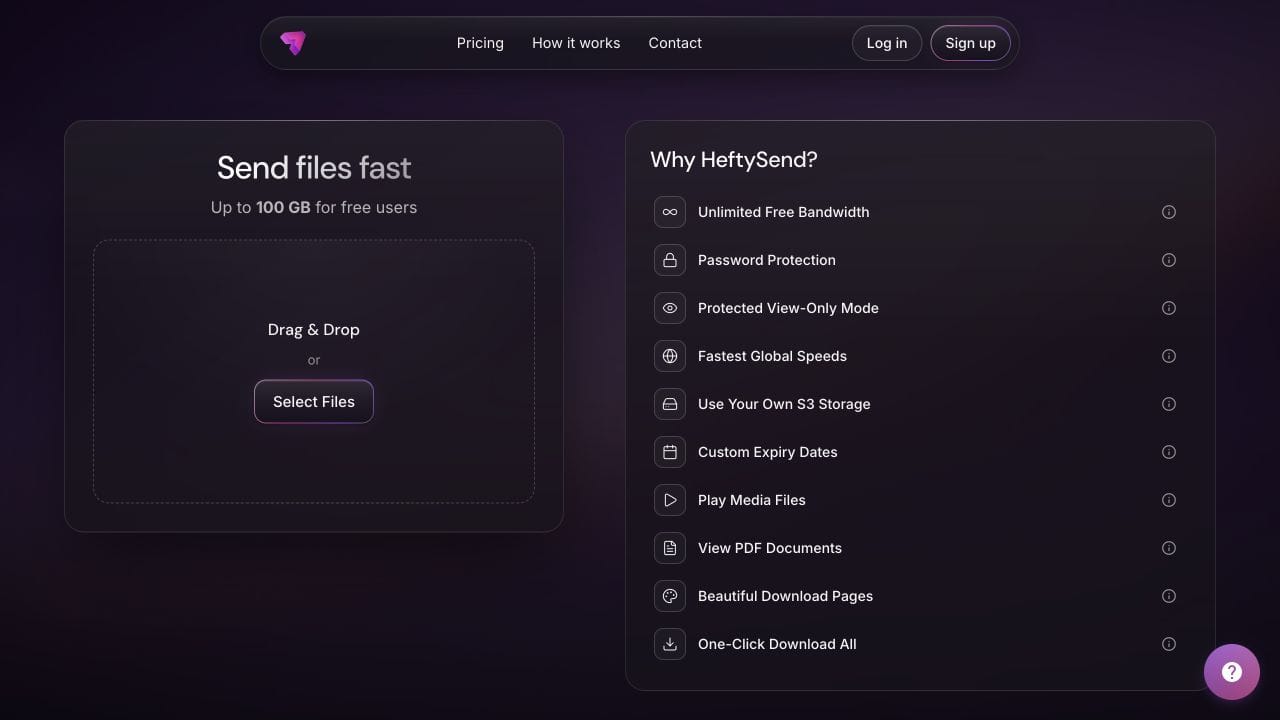
HeftySend Free supports up to 100 GB per transfer with three days to collect. HeftySend charges no bandwidth fees. If you connect your own storage, your provider’s storage, request and delivery charges can still apply. Check HeftySend plans and collection periods.
Frequently asked questions
Do I need to remove the town from a travel caption?
Keep it if the client needs the town for publication and you have agreed to share it. A useful caption can name the town while leaving out a private address and precise coordinates.
Is one checked photograph enough for a whole shoot?
Photos from different cameras or phones can contain different fields. Check every file if the brief requires a location free set. Include each file format and any separately supplied captions in that check.
Can I keep coordinates for the client’s map?
Yes, if they are an agreed deliverable. Confirm what each point represents and check that the coordinates survived the export. Ask who should receive that version before sending it.
Does a password remove location data?
A password controls access to a transfer. A recipient who obtains a photo can still inspect whatever the file contains. Choose the right export before setting access controls.
What if I have already sent the wrong copy?
Tell the recipient which filenames are affected, send the corrected copies and ask them to replace the earlier set. If they have already published a photo, ask them to replace the downloadable file as well. Changing the original transfer cannot recall copies they have already saved.