Quick answer
Guidance and product details checked 14 October 2026. The folder example below is illustrative, not a recording session we mixed or a transfer we tested.
Does the engineer want stems or individual tracks?
Ask what needs to remain separately adjustable. A grouped drum stem combines several drum tracks into one file; individual kick, snare and overhead files give the engineer more separate controls. People use “stems” loosely, so agree a file list instead of relying on that word alone.
Ableton’s stem export guidance distinguishes grouped material from individual parts. Its examples include vocals, guitars, bass, keyboards and drums. A final stereo mix serves a different purpose: it lets the engineer hear the intended balance, but does not replace the separate material requested for mixing.
A useful question is: “Do you want each drum microphone and vocal layer separately, or the grouped drums and vocals as I hear them now?” Confirm whether alternative takes belong in the delivery too.
What should you agree before exporting?
Get the engineer’s preferred format, sample rate, bit depth and processing requirements before creating a large batch. Save those decisions in the delivery notes so the filenames and settings tell the same story.
- Files: name the individual parts or groups expected.
- Audio specification: agree WAV or another suitable format, the sample rate and bit depth. Do not assume every engineer wants the same settings.
- Processing: ask which creative effects must remain and which should be left for the mix. Label any requested dry and processed alternatives distinctly.
- Timeline: state the common start point, tempo and any tempo changes.
- Reference: identify the current rough mix and the changes the engineer should make.
How do you keep the exported files in sync?
Use the same export start and end for all the requested parts, including leading silence and the space needed for the ending. Do not trim each file to its first audible note.
For Ableton Live, the official workflow uses Export Audio/Video, All Individual Tracks and a shared Render Start and Render Length. Ableton advises turning off Render as Loop, Convert to Mono and Normalize for that workflow. Check the exports rather than assuming the settings alone prove the package is correct.
The Live manual’s export options explain that individual exports can include group, return and main tracks. Decide which files belong in the handover: including a group and all its constituent parts without instructions can make the recipient play the same material twice. The Include Return and Main Effects option also changes what processing is printed. Agree that choice with the engineer.
For an editable mix handover, use the agreed lossless PCM export rather than substituting an MP3 to save space. Live’s manual notes that its MP3 export adds initial silence that can affect alignment. Its bit depth and dither guidance also depends on whether further processing will follow, so follow the agreed specification rather than applying a universal preset.
What does the export process look like?
The video embedded in Ableton’s official support article demonstrates exporting stems or parts. Use it alongside the current written guidance because labels and options can differ between Live versions. It demonstrates the audio software, not HeftySend.
How should you organise the delivery folder?
Give the song and revision one clearly named folder, then separate the requested audio, reference and notes. Here is an illustrative grouped stem delivery for a song called Harbour, version 03. It is not a universal list for a full multitrack mix.
Harbour_MixDelivery_v03/
  Audio/
    Harbour_v03_Drums.wav
    Harbour_v03_Bass.wav
    Harbour_v03_Guitars.wav
    Harbour_v03_Keys.wav
    Harbour_v03_Vocals.wav
  Reference/
    Harbour_RoughMix_v03.wav
  DeliveryNotes.txt
This inventory contains seven files: five grouped stems, one reference mix and one notes file. If the engineer needs individual drum sounds or vocal layers, replace those groups with the agreed separate files and update the inventory. Avoid names such as “Audio 17” or “final final”.
The notes might say: “Harbour v03, 120 BPM throughout. Five grouped stems and one rough mix, all starting at the agreed session origin. Vocals include the approved creative delay. Please confirm the inventory and alignment before mixing.” Add the actual sample rate, bit depth, export range and any exceptions. Those example words should describe your real exports before you send them.
What should you check before uploading?
Open the exported files in a fresh session and check the handover as a recipient would. Keep the original production session safely backed up.
- Compare the exported filenames with the agreed inventory.
- Place the requested parts at the common start point and check the opening, a later section and the ending.
- Listen for missing instruments, accidental silence, cut off tails and effects that differ from the brief.
- Keep the rough mix separate from the parts being combined. It is a reference, not another stem to add on top.
- If you create a ZIP, extract a copy and check its contents before uploading. Follow our folder delivery checklist for packaging and inventory checks.
How do you send the finished package with HeftySend?
Upload the checked package to HeftySend, wait for completion and share the resulting link with the engineer. HeftySend currently allows up to 100 GB per free transfer with three day expiry. Check the complete package size and give the engineer a clear collection deadline.
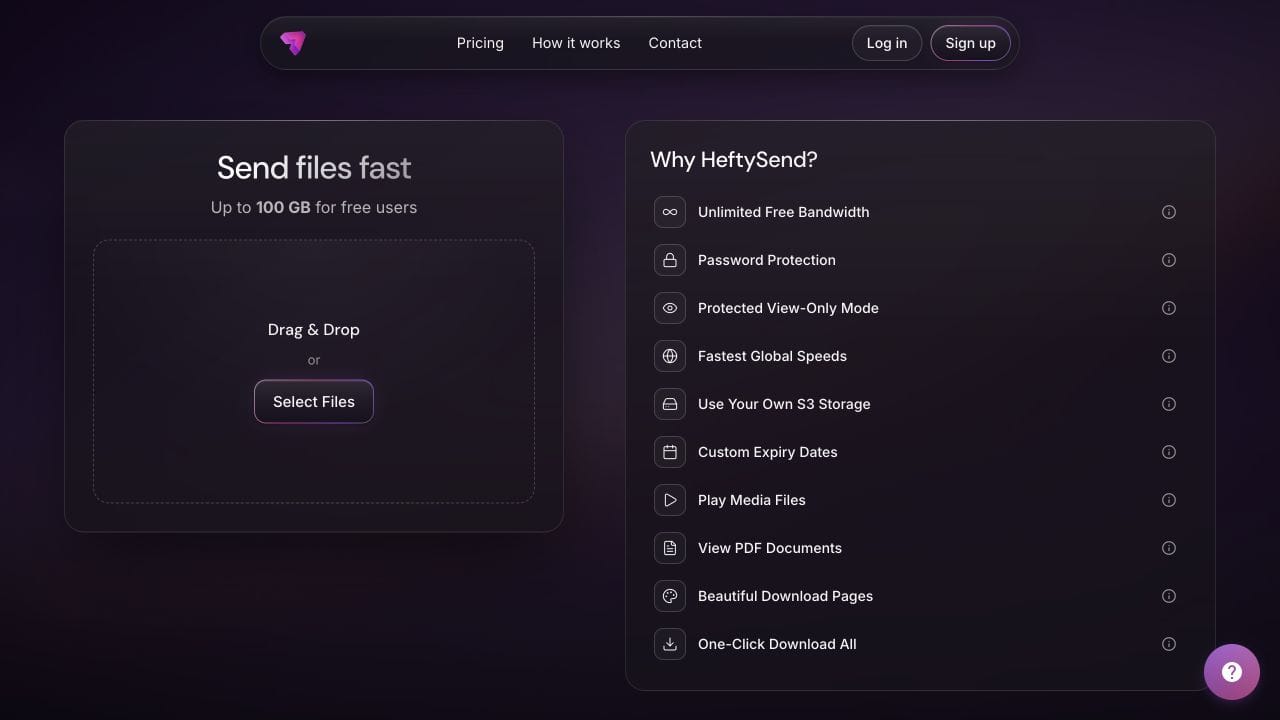
Supported media previews help the recipient recognise files, but the engineer should download the actual audio for mixing. HeftySend’s preview format guide lists WAV, MP3, OGG and FLAC among supported audio formats. A preview is not a substitute for checking all parts together in the audio session.
Paid plans add custom download pages for your studio’s presentation and delivery instructions. Premium currently costs $9 USD per month, supports up to 1 TB per transfer and offers up to 365 days of availability with included storage. See current HeftySend plan details if the engineer needs more collection time.

HeftySend does not charge for bandwidth usage. If you connect your own storage, that provider’s charges remain separate. For a large session, use our upload and download deadline worksheet to allow time for both sides of the delivery.
Frequently asked questions
Should I send the native project as well?
Only if that is part of the agreed handover. Ask which software version and dependencies the engineer can use. A project file by itself does not tell them whether all required audio and instruments are available.
Should every file be stereo?
Ask the engineer which mono and stereo files they want. Preserve the intended channel information and label exceptions. Do not convert everything simply to make the folder look uniform.
Can I leave out silence before a late vocal entry?
Keep the shared timeline unless the engineer has agreed another alignment method. A vocal that starts later in the song should still land at the correct position when imported with the other parts.
What if I change one part after delivery?
Send a clearly versioned replacement with the same agreed alignment and explain exactly which earlier file it replaces. Ask whether the engineer prefers a complete revised package instead.
Does ZIP reduce audio quality?
Packaging files in a normal ZIP does not re encode their audio. Check the extracted files and inventory. Do not confuse creating an archive with exporting a smaller lossy audio format.
What should the engineer confirm after downloading?
Ask them to confirm the file count, readable audio, correct revision and alignment. That gives you a concrete handover check before the mixing work begins.
Give the engineer a clear starting point
A useful delivery contains the agreed parts, an understandable reference and notes that remove guesswork. Check that package, then send it with HeftySend and a realistic collection deadline.