Quick answer
To send a folder without missing files, package the complete folder as a ZIP, extract a test copy and compare its contents with your original inventory. Upload the checked archive to HeftySend, share the completed link and ask the recipient to extract and check the same files. A successful upload confirms that the selected file arrived; it cannot tell you whether you selected everything the recipient needs.
The easy mistake is sending the visible files while leaving a subfolder, caption or supporting asset behind. A short inventory gives you something concrete to check before sending and after collection.
Should you send a ZIP or individual files?
Use a ZIP when the folder structure matters; send individual files when convenient previews and selective downloads matter more. If you need both, include the archive plus a clearly labelled preview copy and count both towards the transfer size.
A ZIP keeps the package together as one uploadable file. Do not assume that selecting loose files recreates their original subfolders on the recipient’s computer. For an ongoing shared workspace rather than a finished package, see our shared folder versus transfer link guide.
What should you check before packaging the folder?
Check the actual files, their paths and the dependencies needed to use them. A familiar filename alone does not establish that you have the right version.
- Choose the delivery copy. Put the agreed files in one clearly named folder. Keep your working originals separately.
- Finish local downloads. Make sure cloud stored items are available locally before packaging them. A shortcut to a file elsewhere is not the file itself.
- Check nested folders. Look for captions, sidecar metadata, linked assets and notes. Keep required camera structures intact.
- Write an inventory. Record the relative path, file count and total size. For a small delivery, a plain text list is enough.
- Open key files. Check that the intended documents, images and media work before you create the archive.
Keep unrelated private material out of the delivery copy. For a software project or editing handover, use the application’s collection process where appropriate, then inspect the collected result. Our video delivery guide explains the difference between a final film and an editable project.
What does a useful folder inventory look like?
A useful inventory includes each file’s location within the delivery, so identical names in different folders remain distinguishable.
For this guide, we created five small demonstration text files, packaged them with Python’s ZIP tools and extracted the archive locally. The five relative paths and file contents matched after extraction. This was a local archive check, not a HeftySend upload or a customer delivery.
| Path inside ClientDelivery | Bytes | After extraction |
|---|---|---|
| ReadMe.txt | 54 | Matched |
| Notes/Approved.txt | 24 | Matched |
| Notes/Archive/Approved.txt | 23 | Matched |
| Assets/Caption.txt | 22 | Matched |
| Assets/Credits.txt | 21 | Matched |
The two files named Approved.txt contain different text. Keeping their relative paths prevents an ambiguous delivery. The example contains five files totalling 144 bytes before packaging; the ZIP has its own size because it also stores archive information.
For your own delivery, compare the extracted file count and paths with the inventory. Size and count checks catch omissions, but they do not prove identical contents. If exact integrity matters, compare file checksums using the same algorithm at both ends, then still open the important files to check that you supplied the intended version.
How do you create and check the ZIP?
Create the archive from the complete top level delivery folder, then extract it into a separate location and check the result.
- On a Mac: hold Control while clicking the folder in Finder, choose Compress, then open the resulting ZIP to expand it. See Apple’s folder compression instructions.
- On Windows: use the folder’s context menu to create a compressed ZIP. Microsoft documents the route through Show more options, Send to and Compressed (zipped) folder. Use Extract All to inspect the result. See Microsoft’s ZIP instructions.
Leave enough space for both the archive and the extracted files. Confirm that the extracted copy has the folders and files you expected before uploading. Menu wording can vary with your operating system version.
MacMost’s demonstration below shows ZIP creation and extraction on a Mac. It demonstrates the operating system workflow, not HeftySend.
Why does the ZIP barely shrink my photos or videos?
Files that are already compressed may gain little from another layer of compression. Use ZIP for organisation when that is its main benefit, rather than expecting a large reduction.
Microsoft specifically notes that a collection of JPEG images can remain about the same size after zipping. Many finished video files are also already compressed. Re exporting a video with a lower bitrate is a different operation that can remove detail; ordinary ZIP packaging does not re encode the video inside.
Should you send a whole camera card folder?
Preserve the complete source structure when the recording format and editing workflow depend on it. Do not select only the visible clips without checking what the editor needs.
Adobe’s guidance for transferring camera media names sources such as P2 cards and XDCAM media, and advises copying the whole folder with its subfolders. For a P2 handover, for example, keep a separate containing folder for each card copy rather than combining loose media from several cards.
That does not mean every client wants camera originals. Agree whether the job requires source media or a finished export. Ask the receiving editor to confirm the package imports correctly before treating the handover as complete. Do not rename internal camera folders simply to make them look tidier.
How do you send the checked folder with HeftySend?
Upload the checked ZIP as a file, wait for the transfer to finish and share its completed download link. Include the inventory and collection deadline in your message or delivery notes.
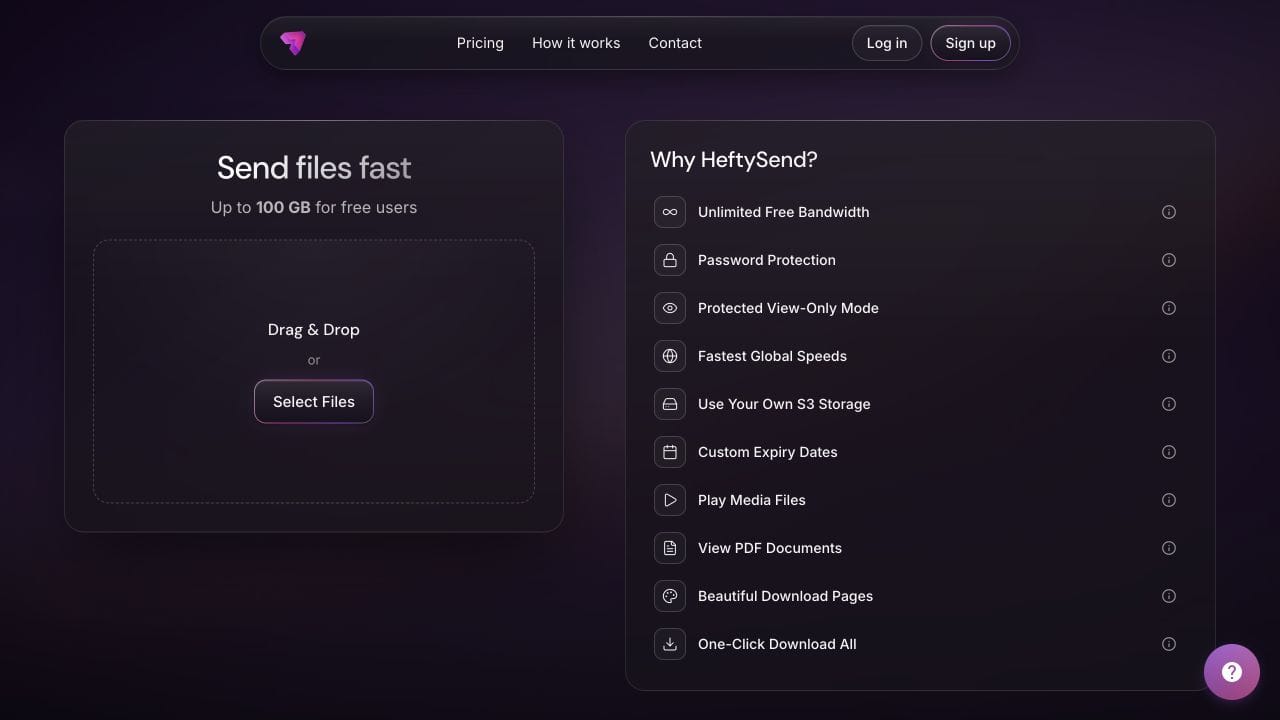
HeftySend Free currently allows up to 100 GB per transfer with three days to collect it, checked against the live HeftySend plans on 8 October 2026. Include any separate previews or notes in your size calculation. Standard recipients do not need an account to download.
HeftySend does not charge for bandwidth usage. If the delivery needs longer availability or a custom download page, consider a paid plan. Premium lists up to 1 TB per transfer and 365 days with included storage. If you choose your own storage, the provider’s storage, request and delivery costs remain separate.
Supported files supplied separately can offer useful previews. Do not promise that a recipient can preview every item inside an archive. A paid custom download page can carry your delivery message and presentation.

Is an uploaded ZIP the same as Download All?
No. An archive you create before uploading is a single supplied file; Download All creates a ZIP from several files already in a transfer.
HeftySend’s Download All tutorial sets a 10 GB total transfer cap for that generated archive. Above the cap, use individual file download buttons. Do not confuse that cap with the current 100 GB free transfer allowance or assume that Download All reconstructs a folder structure you never supplied.
How does the recipient check that nothing is missing?
The recipient should download the complete supplied archive, extract it and compare the result with your inventory before confirming receipt.
- Check that the browser has finished downloading, rather than opening an incomplete download.
- Extract the ZIP into a location with enough free space.
- Compare the expected folder paths and file count.
- Open important files and check any project dependencies or camera import workflow.
- Report a missing path or extraction error while the transfer is still available.
Use a message such as: “This delivery contains ClientDelivery.zip with five text files in the listed folders. Please extract the archive, compare the inventory and confirm the files open. Collect it before the expiry shown on the download page.” Replace the example with your actual package details.
Frequently asked questions
Can a ZIP contain two files with the same name?
Yes, when they are in different folders and their relative paths are retained. Check the extracted structure instead of moving every file into one flat folder.
Should I count the inventory file as part of the delivery?
Yes, if you include it in the archive. State clearly whether your count includes notes and inventories so the recipient compares the same set.
Does a matching file count prove the folder is correct?
No. A wrong version can replace a correct file without changing the count. Check paths and contents too; use matching checksums when exact integrity matters.
What if the recipient cannot extract the ZIP?
Check that the download finished and there is enough space to extract it. Try extracting the sender’s copy locally. If that fails too, rebuild the archive from the source folder before sending a replacement.
Will a ZIP include files linked from another location?
Do not assume so. A shortcut or project reference may point outside the folder. Collect the actual dependencies and test the extracted copy independently.
Can I delete the original folder once I send the link?
Keep your source copy and backups until your agreed retention arrangements allow otherwise. A temporary delivery link is not your only archive.
Send a package your recipient can check
Prepare one complete folder, verify the archive and give the recipient a clear inventory. Start your HeftySend transfer when the checked package is ready.
Product details checked on 8 October 2026. The five text files are a local demonstration, not a customer delivery or transfer performance test.