Should you send an editable presentation or a viewing copy?
Send a PPTX when the recipient needs to change the slides, and include a separate viewing copy when appearance matters more than editing. Ask which PowerPoint version and device they will use before packaging the delivery.
- Editable handover: a PPTX, agreed source assets and brief delivery notes.
- Static review: a PDF to show the slide layout. Do not rely on a PDF to demonstrate animation or video playback.
- Timed playback: an exported video, checked from beginning to end, when the recipient needs a recording rather than editable slides.
Label each copy clearly. A client should not have to guess whether the PDF, video or presentation is the version they are meant to approve.
How do you keep videos inside the PowerPoint?
Embed local video files instead of leaving the presentation dependent on files elsewhere on your computer. Microsoft distinguishes embedded media, which increases the PPTX size, from linked media, whose links can break.
In desktop PowerPoint for Windows, use Insert → Video → This Device and choose Insert. Choosing Link to File creates a different dependency. Microsoft recommends MP4 with H.264 video and AAC audio. On a Mac, the equivalent route is Insert → Video → Movie from File; leave the link option off when embedding.
For an existing Windows presentation, check File → Info for media compatibility information and linked file locations. If you deliberately keep linked videos, put the presentation and videos together and test that complete folder after delivery. See Microsoft's embedded and linked video guidance.
Include a note beside any slide that depends on an online service. A successful local video test does not prove that an online clip will be available at the venue.
How do you stop fonts changing on another computer?
Embed fonts that permit it, or agree a replacement that the recipient can use. In Windows PowerPoint, open File → Options → Save and select Embed fonts in the file. Choose Embed all characters for an editable handover.
Embedding only the characters already used can restrict later editing. Some fonts prohibit embedding or permit viewing and printing without unrestricted editing. Microsoft also supports font embedding in current Microsoft 365 PowerPoint for Mac and specified recent Mac releases. Check the font embedding instructions and restrictions for your version.
Do not assume that sending a font file grants permission to use it. If a required font cannot be included, agree a replacement and compare the revised slides with your PDF reference before sending.
This Windows demonstration shows where the font embedding setting appears. It is a useful visual companion to Microsoft's current instructions; the exact interface can vary by version.
Watch the PowerPoint font embedding demonstration on YouTube.
What should a presentation handover contain?
Include one clearly named editable version, its viewing reference and a short inventory. Here is an illustrative delivery for a launch presentation with an embedded product demonstration; these filenames describe a suggested package, not a claimed client test.
| File | Purpose |
|---|---|
| Launch_v03.pptx | Editable presentation, including the demonstration video |
| Launch_v03.pdf | Static reference for checking slide layout |
| ProductDemo_v03.mp4 | Separate source video, if the client needs to edit or replace it |
| ReadMe.txt | Version, inventory, software requirements and known dependencies |
For this example, the recipient should receive four files. The separate MP4 is an editing asset; its presence does not prove that the video is embedded in the PPTX. Check that separately in PowerPoint.
Your delivery note could say: “Please edit Launch_v03.pptx. Use the PDF as the layout reference. The product video is on slide 6. Before the meeting, open the downloaded presentation in your intended PowerPoint version, play slide 6 and confirm that the headings match the PDF.” Replace those details with the actual file and slide names.
If you package several files together, follow our guide to sending a folder without missing files. Extract the received ZIP before opening the presentation or its linked assets.
How can you send a PowerPoint that is too large for email?
Upload the completed package to HeftySend and send the download link in your email. The Free plan currently allows up to 100 GB per transfer with three day expiry, so you may not need to reduce a presentation's media quality just to fit an attachment limit.
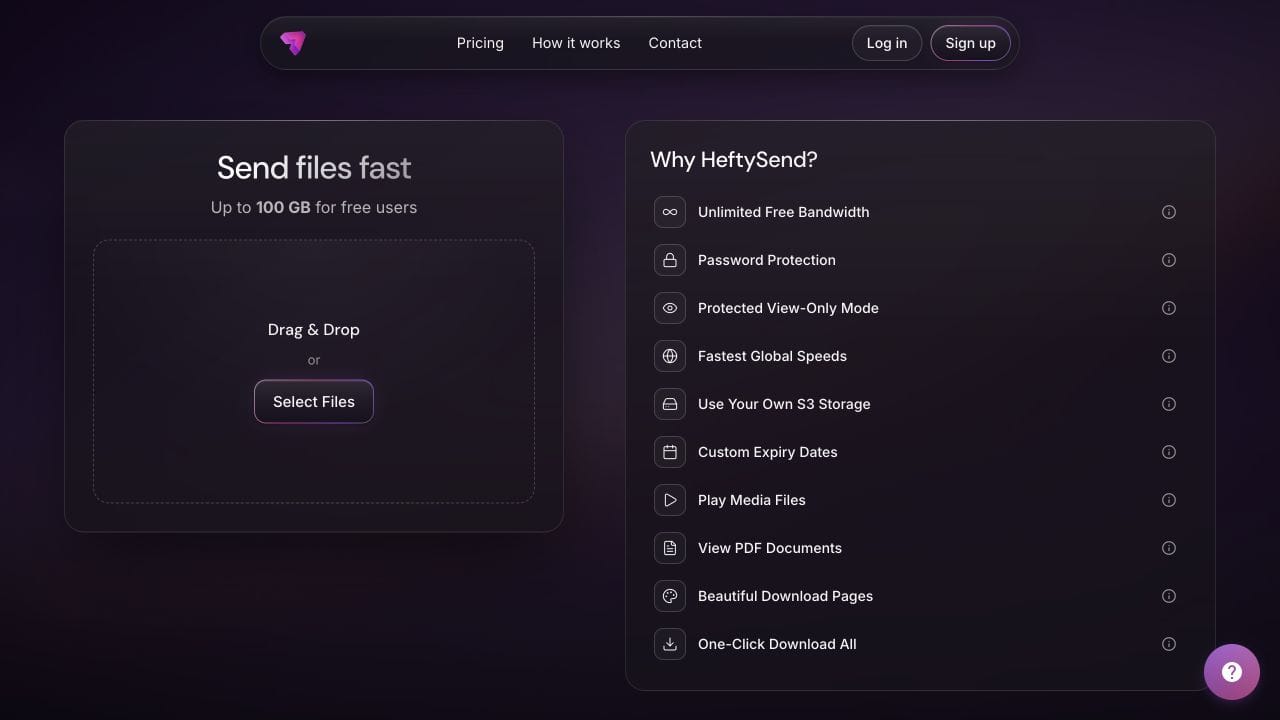
HeftySend supports browser previews for PDFs and supported media. Send the PDF separately if you want an easy layout reference. PPTX is not listed among the supported preview formats, so ask the recipient to download the editable file and open it in suitable software.
For repeat client deliveries, paid plans add custom download pages. Premium currently costs $9 per month and includes transfers up to 1 TB with 365 day expiry using included storage. Check the current HeftySend plans before choosing longer availability or branding.

HeftySend does not add bandwidth charges. If you connect your own storage, your provider's storage, request and any applicable egress costs remain separate. A larger transfer allowance also does not change the recipient's PowerPoint compatibility or available disk space.
What should you check before the presentation is needed?
Check the downloaded copy in the software and setting the recipient will actually use. Opening your original file on your own computer can hide dependencies that will be missing elsewhere.
- Download the delivery and compare its contents with the inventory.
- Open the PPTX and compare headings, line breaks and spacing with the PDF.
- Run the slide show, including every video, sound and important transition.
- Confirm that any required online content is accessible on the intended network.
- Ask the presenter to confirm the correct version and allow time for a replacement transfer.
For a large package, allow time for both upload and download. Our upload timing guide explains why an upload finishing just before a meeting is not a complete delivery plan.
What else should you know about PowerPoint delivery?
Will a ZIP fix a broken video link?
No. A ZIP keeps included files together, but cannot supply a missing video or guarantee that PowerPoint can locate it. Check the extracted presentation and its media before relying on the archive.
Should you delete the original after uploading?
No. Keep the source presentation and agreed assets in your normal backup system. A delivery link, particularly a free link that expires after three days, should not be your only copy.
Should the handover include speaker notes?
Include the notes the presenter needs, and review them before delivery. Remove private drafting comments or reminders that are not intended for the recipient. Say whether the viewing copy includes any notes.
Does a successful download mean the presentation works?
No. Download completion confirms file receipt, while playback and layout still depend on the presentation and the recipient's software. Ask for a brief opening and playback check.
What if the client wants a small change after delivery?
Send a clearly numbered replacement and identify the changed slides in the message. Say explicitly which earlier version the new package replaces, and regenerate the viewing reference if the slides have changed.
Should you send every source asset?
Send the assets agreed for the handover and needed for the recipient's work. Remove unrelated drafts and explain any dependencies you cannot supply. A longer file list is not automatically a more useful delivery.
Once the presentation and its reference copy are checked, send a clearly labelled package and a short delivery message.