To share CAD files with a client or contractor, agree the software and version first, collect the drawing’s supporting files, and include a PDF reference and delivery notes. Extract and open the delivery copy before sending a download link. Sending a DWG alone may leave the recipient without the references needed to use it.
A successful upload is only one part of a CAD handover. The useful question is whether the recipient can open the intended revision, see the complete drawing and do the agreed work.
Does your client need to review or edit the drawing?
Send a readable reference for review and an agreed native package for editing. Ask which task the recipient needs to perform before choosing the files.
- Visual review: provide a clearly labelled PDF showing the intended sheets and revision.
- Continued CAD work: agree the application, version, file format and required references with the receiving designer.
- Work in another application: ask the recipient which exchange format their workflow accepts, then check the exported result together.
Do not assume that opening a file means every editable feature has survived an exchange. Include the native source when it is part of the agreed delivery, and identify any exported copy separately.
What should you agree before exporting CAD files?
Agree the application version, drawing units, revision and intended use before preparing the package. These details give the recipient a way to distinguish the right file from a merely readable one.
A short message can settle the basics: “Please confirm your CAD application and version, whether you need editable drawings or review PDFs, and any required supporting files. This delivery will contain revision R03 in millimetres for review.” The revision, units and status are illustrative; replace them with the actual project details.
Keep draft, review and approved material clearly distinguished. A transfer link does not establish that a drawing is approved for construction or manufacture.
How do you collect AutoCAD supporting files?
Use AutoCAD’s eTransmit workflow to collect the drawing and its dependencies, then inspect the package before sending it.
Autodesk documents eTransmit as a way to gather drawings with supporting material such as external references, raster images and plot settings. The output can be a ZIP or a folder. Its options also allow a drawing format to be selected for an older recipient version.
- Save the intended drawing revision and open eTransmit.
- Inspect the files listed for the transmittal, including referenced drawings and images.
- Review the transmittal setup, output location and required drawing format.
- Check whether needed fonts or unloaded references are included rather than assuming the defaults collect everything.
- Create the package and retain its report with the delivery notes.
See Autodesk’s instructions for packaging drawings with eTransmit. Check that you are entitled to share any included supporting assets.
VDCI’s short demonstration below shows the eTransmit workflow and external references. It uses an older AutoCAD interface, so use Autodesk’s instructions for the options available in your installed version.
Watch VDCI’s AutoCAD eTransmit demonstration on YouTube.
What should the delivery notes contain?
Include enough information to identify the correct drawing, its requirements and the purpose of the delivery without opening every file.
- Project name, revision and delivery date.
- The main drawing or assembly to open first.
- Application and version used to prepare the files.
- Units and any agreed recipient settings.
- A list of supplied packages, PDFs and other supporting files.
- Known exclusions, outstanding issues and the collection deadline.
For example, an illustrative delivery might contain Workshop_R03.zip, Workshop_R03_Review.pdf and DeliveryNotes.txt. Keep the application’s internal package structure intact. Renaming referenced files to tidy the delivery can create a different problem from the one you were trying to solve.
For general archive preparation, see how to send a complete folder without missing files. The CAD specific check is whether the collected drawing works with its dependencies, not just whether the ZIP contains files.
How do you check the CAD package before sending it?
Extract a fresh delivery copy and open that copy, then ask the recipient to confirm it works in their agreed software.
- Extract the package into a separate location rather than testing only your original working folder.
- Open the main drawing and inspect warnings about missing references, images or fonts.
- Compare the intended sheets and visible content with the reference PDF.
- Check the revision, units and any agreed export settings.
- Ask the recipient to report application errors with the affected filename and message.
A check on your computer can still benefit from files or software installed locally. Recipient confirmation remains useful, especially when the receiving application or version differs. This guide describes a checking workflow; it does not claim a CAD compatibility test on your project.
How do you send the checked package with HeftySend?
Upload the checked archive to HeftySend, add the PDF reference separately if you want a convenient preview, and share the completed transfer link with its collection deadline.
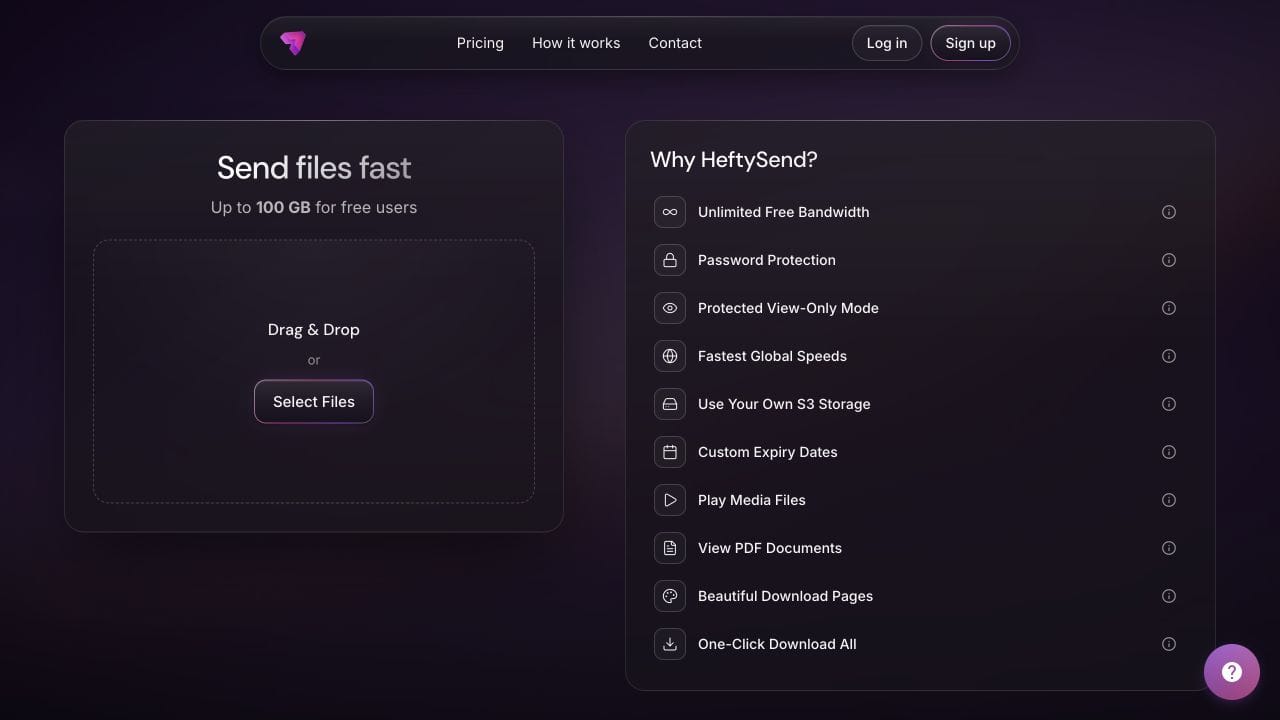
HeftySend Free currently allows 100 GB per transfer with three day expiry. Count the archive, separate PDF and notes together. HeftySend does not charge bandwidth fees. These details were checked against the current HeftySend plans on 18 October 2026.
HeftySend’s supported file preview guide lists PDF documents, images, video and audio. It does not list native CAD formats. Supply the PDF separately for browser review and have the recipient download the CAD package into appropriate software.
Paid custom download pages can present the delivery with your own branding and message. Premium lists up to 1 TB per transfer and 365 days of availability with included storage. If you choose a plan using your own storage, your provider’s storage, request and delivery charges remain separate.

Keep a source copy and backup under your project’s retention arrangements. A temporary transfer link should not be the only location holding the drawings.
Frequently asked questions
Can I send only the DWG?
Only if that DWG is the complete agreed delivery and does not require missing supporting files. Inspect references and recipient requirements first, and include a PDF reference when it helps the client check the drawing.
Can my client view CAD drawings without CAD software?
A PDF reference lets a client review the exported sheets without opening the native CAD file. It is a review copy, so agree a suitable application or viewer if the client needs to inspect or edit the native drawing.
Does zipping the drawing fix missing references?
No. A ZIP packages the files you put into it. Collect the actual referenced assets with the application’s packaging workflow before creating and checking the archive.
What if the recipient uses an older AutoCAD version?
Agree a compatible drawing format before delivery and check the converted copy. AutoCAD eTransmit includes format options, but the receiving designer should still confirm that the supplied drawing supports the work they need to do.
How should I send a revised drawing?
Prepare a clearly identified new revision and state which earlier delivery it replaces. Include an updated reference PDF and notes so the recipient can distinguish the new package from an older download.
Does a password make an incomplete CAD package usable?
No. Access protection and package completeness solve different problems. Even a protected transfer needs the correct drawing, supporting files and compatible receiving software.
Ready to send your CAD delivery?
Agree the receiving software, collect the supporting files and check the extracted package. HeftySend can then deliver the archive alongside a convenient PDF reference, with no HeftySend bandwidth charges.