To send a DaVinci Resolve project to another editor, create a project archive with the agreed media, check the restored copy, then transfer the complete archive folder. A DRP project file alone does not collect the source footage. Give the recipient your Resolve version, the timeline to open and a reference video for checking the result.
An editor needs more than a film they can play. They need the project structure and the assets required to continue the edit. Agree that package before uploading hours of footage.
Should you send a DRP file or a DRA archive?
Send a DRA archive when you need to collect the project and its media; send a DRP only when the recipient already has the required assets or you are supplying them separately.
Blackmagic’s DaVinci Resolve 21.1 reference manual describes project export and archive restoration in Chapter 3. An archive is a directory with a .dra extension, not simply another name for a rendered video.
- DRP: the exported Resolve project. Plan the media delivery and relinking separately.
- DRA: the project archive directory, containing the project and the media selected for archiving.
- MP4 or MOV reference: a viewing copy to compare with the restored timeline. It does not replace the editable project.
If the client only wants a finished film, use our guide to sending large video files. The workflow here is for another editor continuing the project.
What should you agree with the receiving editor?
Agree the Resolve version, Free or Studio edition, required timelines and media scope before making the archive.
Ask whether the editor needs every take, only the current cut, or a smaller proxy package for an agreed offline workflow. List required fonts, plugins and other dependencies rather than assuming an archive installs them on another computer.
Record the exact application version in your delivery notes. Do not assume that every project made in a newer release will open correctly in an older installation. Keep an untouched source project and your normal backups while checking the handover.
How do you create the Resolve project archive?
Open Project Manager and use the project’s archive command, then review which media the archive will contain.
- Save the intended project and confirm which revision you are handing over.
- Open Project Manager, open the project’s contextual menu and choose the archive option. Depending on the version and interface, the label may appear as Archive or Export Project Archive.
- Choose a destination with enough free space for the collected media.
- Include Media Files when the recipient needs the original video, audio and graphics. Review Proxy Media and Render Cache separately.
- In versions offering Only include used media, leave that option off if the receiving editor needs alternate takes outside the current timelines.
- Review LUT and Gallery Still options where available, complete the archive and inspect any missing media errors.
The 21.1 manual shows these archive options on pages 92 and 93. Older demonstrations may have fewer options, so compare the explanation with your installed version rather than copying every checkbox from a video.
The genuine Resolve demonstration below shows project archiving, the difference from exporting a project file, and a separate Media Management workflow for collecting and relinking media. It is a demonstration by Transient Mobile, not a project we edited or a HeftySend performance test.
Watch the Resolve archive and media management demonstration. The opening section shows the archive command; the section beginning around one minute explains collecting media separately.
How should you package the archive for delivery?
Keep the complete DRA directory together and add clearly labelled notes and a reference export.
For example, an illustrative handover could contain Interview_R03.dra, Interview_R03_Reference.mp4 and ReadMe.txt. These names describe a suggested package, not files from a customer project.
Write the intended timeline name, Resolve version, whether originals or proxies are supplied, known exclusions and the collection deadline in the notes. If alternate takes are deliberately excluded, say so. A recipient should not have to discover that limitation while editing.
You can package the complete archive directory in a ZIP before uploading it. Keep its internal structure intact and extract a test copy first. Our folder delivery checklist covers archive completeness. ZIP packaging does not create media that was absent from the Resolve archive.
How does the recipient restore the project?
Put the downloaded DRA directory on the storage the editor will use, then restore it through Resolve’s Project Manager.
Extract any outer ZIP first. The manual explains that restoring adds the project to Project Manager while retaining its links to media inside the archive directory. It does not move that directory into a different permanent media location.
- Copy the complete DRA directory to suitable working storage.
- Use Project Manager’s Restore or Restore Project Archive command and select that directory.
- Give the restored project a distinct name when prompted.
- Open the intended timeline and compare picture, sound and titles with the supplied reference.
Do not delete the downloaded archive directory simply because the project appears in Project Manager. Its media may still be the files Resolve is using.
What if Resolve shows Media Offline?
Check that the required files were delivered and extracted, then point Resolve to their actual location.
In the Media Pool, select the affected clips and use Relink Selected Clips. Choose the directory containing the received media. Chapter 17 of the manual, page 403, describes searching within that directory and offering a deeper search when files are not found.
After relinking, inspect the shots and audio rather than relying only on the disappearance of a warning. If media is absent from the delivery, searching another folder cannot recreate it: ask the sender for the missing files. A missing plugin or font is a separate dependency and may need its own agreed solution.
How do you send the project with HeftySend?
Upload the checked package to HeftySend and send the completed link with its size, contents and collection deadline.
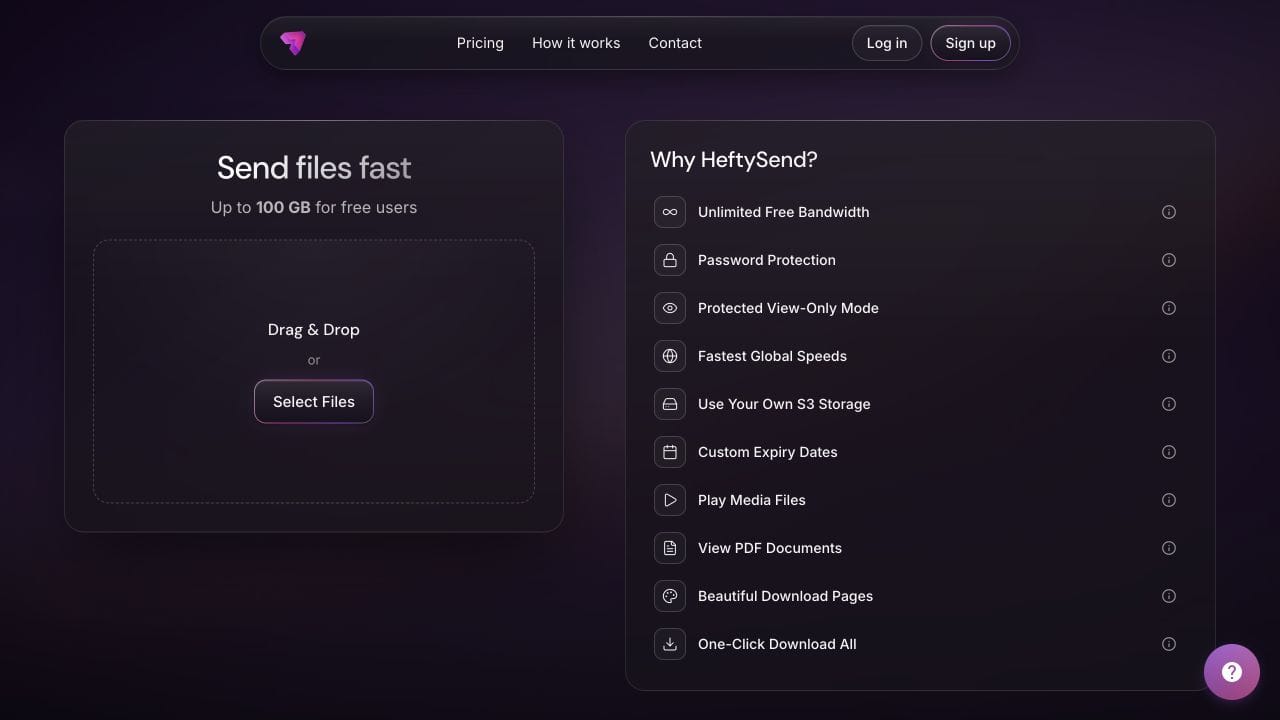
The live HeftySend homepage checked on 19 October 2026 lists 100 GB per free transfer with three day expiry. Include the archive, reference and notes in that total. A small DRP size does not tell you the size of the collected footage.
HeftySend charges no bandwidth fees. A separately supplied supported reference video can give the recipient a convenient browser preview, while the editable archive must be downloaded and opened in Resolve.
For larger packages or longer availability, HeftySend Premium lists up to 1 TB per transfer and 365 days with included storage at $9 per month. Paid plans also offer custom download pages. If you use your own storage, the provider’s storage, request and delivery charges remain separate.

What should the editor confirm after downloading?
Ask the editor to confirm that the restored project opens, the expected media is available and the intended timeline matches the reference.
Check the opening, middle and end of the timeline, titles, audio and any sections using special dependencies. If the delivery is for final finishing, explicitly confirm access to the agreed original media. A proxy picture playing successfully is not proof that the originals arrived.
Keep the source project and backups until your normal retention arrangements allow otherwise. A completed transfer is a handover step, not a replacement for your archive.
Frequently asked questions
Why is my DRP file much smaller than my footage?
The project export and source footage are separate things. A small DRP can describe an edit that relies on many gigabytes of media elsewhere. Use the agreed archive or media collection workflow for the handover.
Can I send proxies instead of original footage?
Yes, when both editors agree on a proxy workflow and how the originals will be available for finishing. Label the delivery clearly and check the restored project. Do not describe a proxy package as a complete original media handover.
Does restoring the archive copy its media somewhere else?
Restoring adds the project to Project Manager and leaves it linked to the archive’s media. Put the archive on suitable working storage before restoring and keep that directory available.
Should I include unused takes?
Include them when the next editor may need to change the edit. A delivery limited to used media can be appropriate for a defined task, but agree that limitation before excluding alternatives.
Will HeftySend preview the Resolve project?
Do not expect a native Resolve project or archive to play in the browser. Supply a supported video reference separately for preview, and download the editable package for Resolve.
Will sending the link fix missing media?
No. A transfer delivers the package you supplied. Check the archive and restore workflow before sending, and resolve missing assets with the sender if the recipient cannot find them.
Once the archive has been checked, give the receiving editor one clear package and a useful delivery note.