Send a clearly labelled proxy package first, with the project or agreed editing instructions, matching clip identities and a note explaining when the originals will arrive. Keep the original footage unchanged. Before final finishing, reconnect the originals and check that the timeline uses the correct shots and sound.
Your editor can start selecting takes while a much larger original footage delivery is still being prepared. The important part is making the two deliveries match. A folder of small videos is useful only if the editor knows which originals they represent.
What should you agree before creating proxies?
Agree the editing application, version, proxy preset and who will reconnect the originals. A proxy is a working copy for editing, not the final master or a replacement backup.
- Confirm whether you are supplying a prepared project or clips for a new project.
- Agree the intended sequence dimensions and frame rate independently of the smaller proxy image.
- Identify any separate production audio, graphics and notes needed to start cutting.
- Set a delivery date for the originals and name the person responsible for checking them.
This guide uses Premiere commands as a concrete example. If you are transferring a complete Resolve project instead, use our DaVinci Resolve project handover guide.
How do you create a proxy package that can be matched later?
Keep the relationship between each original and its proxy clear. Preserve original filenames and camera folder structure; do not rename the source media halfway through the job.
Adobe’s Premiere proxy creation instructions describe selecting source clips in the Project panel and choosing Proxy > Create Proxies. Choose the agreed preset and destination, then allow Adobe Media Encoder to finish the jobs before packaging them. The source media must be online for creation.
Premiere normally adds _Proxy to generated proxy names. That suffix does not mean you should remove it or give the original the same new name. Keep a clear mapping and use the application’s matching controls.
For an illustrative shoot, A001_001.mov could have a proxy called A001_001_Proxy.mov. If a second camera also creates A001_001.mov, keep each camera or card in a separate named folder and record that path. A filename on its own may not uniquely identify the shot.
Check representative clips for matching action, timecode, duration, frame rate and audio layout. Do this before processing an entire shoot. A proxy that plays is not proof that it will reconnect correctly.
Adobe Care’s short demonstration shows proxy creation, the playback toggle, relinking and export controls. It was made for Premiere Pro 24.2, so compare the interface with your installed version.
Watch Adobe Care demonstrate creating and using proxies.
What belongs in the first delivery?
Send the proxies, the agreed project file and a short handover note. Include any separate audio or assets the editor needs, rather than assuming they are inside the project file.
- Proxies. Keep the agreed folder structure and include all clips listed for this delivery.
- Project. State the application version and the sequence to open, if you are supplying one.
- Clip list. Record original path, proxy path and any deliberate omissions. A simple text file or spreadsheet is enough.
- Handover note. Label this as a proxy delivery, explain what audio is supplied and give the originals delivery plan.
A useful note might say: “Interview edit, revision 01. Proxies and production audio included. Camera originals follow separately. Please confirm the project opens and these clips can be used before starting the full edit.” This is an example, not a report of a transfer we tested.
Use our folder delivery checklist if you package the material in an archive. Do not flatten camera or card folders just to make the upload look tidier.
How do you send the proxies through HeftySend?
Send the checked proxy package as its own transfer and label the link clearly. Give the editor the total size, contents and collection deadline, then send the original footage link separately when it is ready.
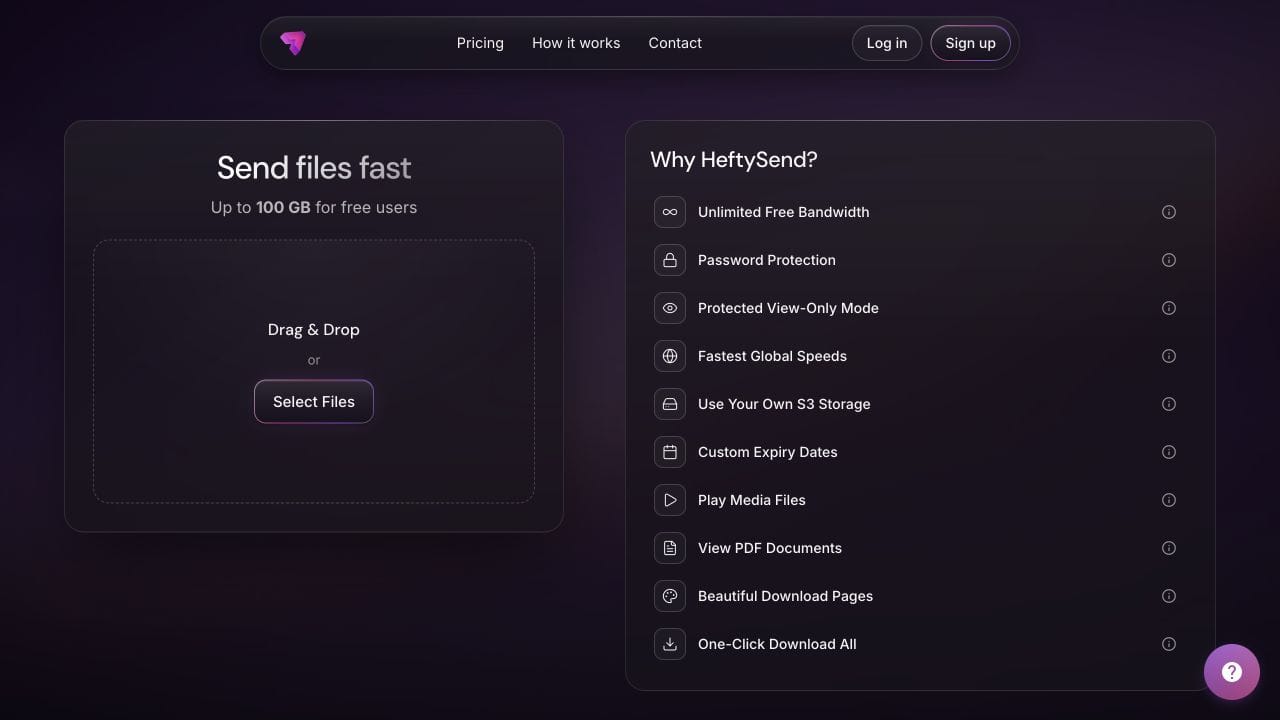
HeftySend Free allows up to 100 GB per transfer with three day expiry, checked on 2 November 2026. Recipients do not need an account. HeftySend charges no bandwidth fees, which keeps its delivery cost separate from the number of times your editor collects the package.
Supported media previews help the editor identify a viewing copy before downloading. The editing project and any unsupported camera format still need the appropriate application. A browser preview does not confirm that proxy links work inside Premiere.

For a larger original footage package or a longer collection window, Premium supports up to 1 TB per transfer and expiry up to 365 days with included storage. Paid plans also offer custom download pages. If you connect your own storage, your provider’s charges remain separate.
Smaller proxies can reduce the first upload, but creating them also takes time. Compare the actual package sizes and connection speed with our file transfer time calculator. Do not promise a fixed saving without those inputs.
How does the editor connect the first package?
Open the agreed project and check its media relationships before cutting. When a Premiere project represents originals that are not yet on the editor’s machine, those original paths can be offline even though the supplied proxy files are available.
Adobe documents attaching proxies to project clips, including supported offline clips. Select the intended clips in the Project panel, choose Proxy > Attach Proxies, and locate the corresponding proxy files. Choose matching properties deliberately; automatic matching still needs a visual check.
If you are starting a new project directly from proxy clips, agree that workflow explicitly. Do not accidentally build the final sequence around a smaller proxy resolution simply because it was the first clip imported.
What changes when the originals arrive?
Keep the originals in their agreed folders, save a new project revision and reconnect the correct source files. Do not overwrite the proxies with renamed originals.
For a workflow begun from proxies, Adobe documents Proxy > Reconnect Full Resolution Media. Select the relevant project clips, choose the matching properties and locate the correct originals. See Adobe’s original media reconnection instructions.
If the project already references the originals but their location has changed, restore those missing source links using the appropriate media relinking workflow. Attaching a proxy and locating an existing original are different operations.
- Inspect several shots, especially clips with repeated camera filenames.
- Check sync, shot boundaries and any separate production audio.
- Confirm the finishing application can access the originals.
- Review export settings and the finished file rather than relying on the proxy playback toggle.
Keep the originals and backups. The arrival of a proxy package is not permission to erase camera media, and a successful download is not proof that the edit has been checked.
Frequently asked questions
Can I send one compressed film instead of individual proxies?
A viewing export is useful for reference, but it does not preserve the individual source clips needed for a normal proxy edit. Agree what the editor needs before rendering.
Should every proxy have exactly the same filename as its original?
Follow the application’s workflow. Premiere can add a proxy suffix. Keep the original identity and folder mapping clear rather than manually forcing every name to be identical.
Will a project file include my separate audio recordings?
Do not assume it does. List and deliver the required audio assets, then ask the editor to check that they are present and correctly linked.
Can proxies replace originals for final colour work?
Plan to reconnect the originals before finishing. A smaller working copy may not retain the source image information needed for the intended colour and export work.
What if the wrong shot appears after automatic relinking?
Stop and inspect the clip identity, folder path and matching criteria. Restore the correct relationship before continuing; a cleared missing media warning does not prove the match is right.
Does HeftySend create or attach proxies for me?
This workflow uses your editing application to prepare and attach proxies. HeftySend delivers the files you provide. It does not make an incomplete editing package complete.
Give your editor a small, clearly described first delivery and a dependable route back to the originals.