Quick answer
To stop sending the wrong version of a file, give each revision a unique number, record which exact file was approved and prepare a separate delivery folder containing only the files you intend to send. Open those delivery copies before uploading, then send one message naming the version and explaining what it replaces.
A file called FinalFinal2 does not tell a client whether it is approved, what changed or which earlier copy to stop using. A small team can avoid that confusion with a consistent naming rule and one person responsible for the outgoing delivery.
What should a useful filename contain?
Use a recognisable project name, the deliverable, its version number and a clear status where needed. Keep the same order throughout the project so people can compare names without opening every file.
For example, a fictional Harbour campaign might use HarbourLeaflet_v03_DRAFT.pdf while comments are being collected, then HarbourLeaflet_v04_OK.pdf after the agreed changes have been checked. The example is a suggested team convention, not a requirement of HeftySend.
- Project: Harbour identifies the job.
- Deliverable: Leaflet distinguishes the artwork from a social image or video.
- Version: v04 identifies the particular revision.
- Status: OK records the intended use once approval has actually been given.
The University of Edinburgh’s file naming guidance recommends meaningful names, a consistent convention and a suffix for different versions. Choose a convention your team understands and write it down before the next delivery.
How do you keep approval attached to the right version?
Record approval against the exact filename and version, rather than a vague message saying “looks good”. A newer file is not necessarily an approved file.
Keep a short delivery record with the filename, version, person who confirmed it, confirmation date and intended use. For the Harbour example, that could read: “HarbourLeaflet_v04_OK.pdf, confirmed by the project owner on 25 October 2026, ready for the agreed print run.” Use real details for your own project.
If someone requests another change, create the next numbered revision and confirm its status again. Do not silently overwrite the approved delivery copy while keeping its old name. A client who already downloaded the earlier file needs a way to recognise the replacement.
Agree who can mark a version ready for delivery. Cambridge’s file organisation and version control guidance also recommends version numbers and an agreed owner for marking the final version. Your delivery record can be a simple shared document; the useful part is that everyone refers to the same record.
What should you check before uploading?
Check the copies in the delivery folder, not just the working files in your editing application. That catches an old export sitting beside a newly saved project.
- Prepare a delivery folder. Copy in only the agreed deliverables. Keep drafts and earlier exports outside that folder.
- Compare filenames with the approval record. Check every version number and intended use.
- Open the actual exports. Inspect the changed page, corrected text, image or section that prompted the latest revision. A filename alone does not prove the contents are right.
- Check companion files. If the delivery includes a PDF, image set and editable source, make sure they belong to the same agreed revision.
- Review the upload selection. Compare the visible file list with your prepared folder before completing the transfer.
- Check the completed link. Confirm that the download page shows the intended files before sharing it.
For projects with many related assets, use our client asset collection checklist to settle what should arrive in the first place. The version check here applies to the outgoing copies you have chosen to deliver.
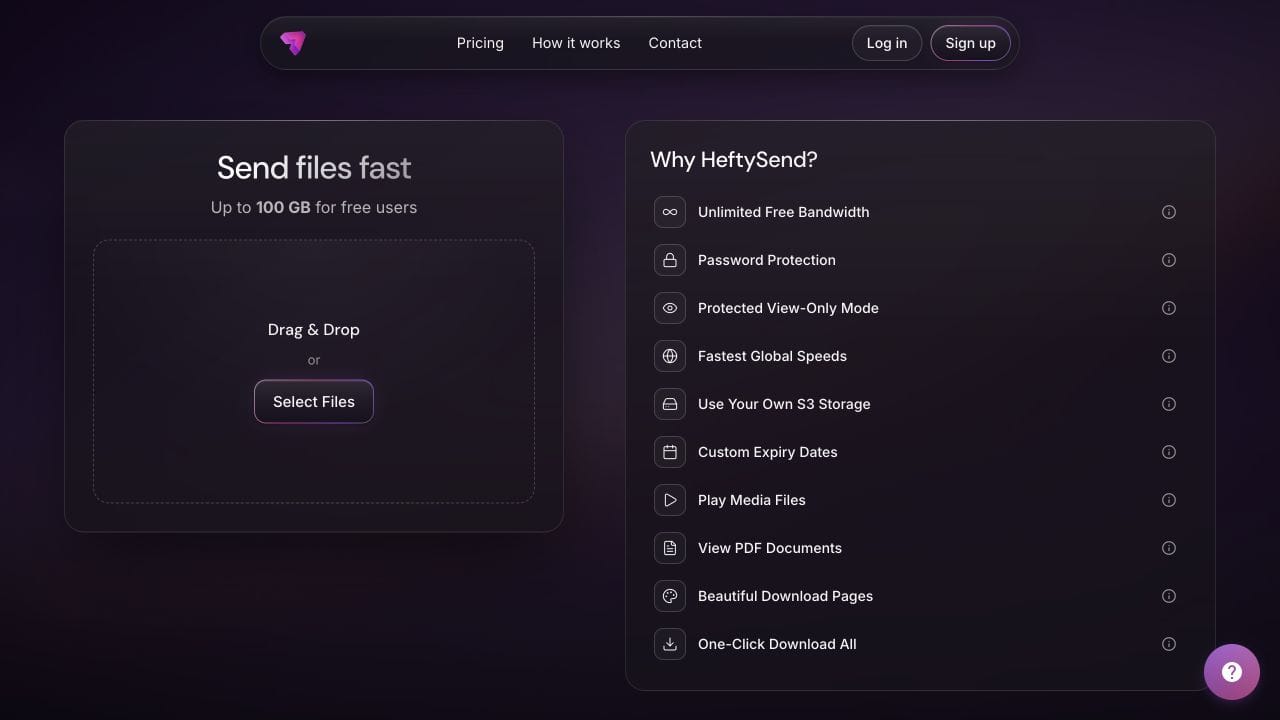
HeftySend lets you send up to 100 GB per free transfer, with three day expiry and no account required for a basic send. Recipients do not need an account to download. HeftySend does not charge for bandwidth usage; a connected storage provider can charge separately for storage, requests or delivery.
What should the delivery message say?
Name the version, explain its purpose and identify any earlier delivery it replaces. Put that information beside the link so the recipient does not have to search an old conversation.
The Harbour leaflet is ready. Please use HarbourLeaflet_v04_OK.pdf for the agreed print run. This replaces v03, which was the review copy. The address on page 2 has been corrected. Download the files before the expiry shown on the page and confirm that you have saved v04.
Use the transfer title and message to reinforce the same information. The HeftySend download page guide explains how recipients see the title, message and file list. Supported image, video, audio and PDF previews can help them recognise a file, but a preview or successful download is not approval of its contents.

What if you already sent the wrong version?
Send a clear correction promptly, identify the old filename and provide the checked replacement. Do not rely on a second link with no explanation.
- Say which copy is wrong. Name the earlier version and the delivery it came from.
- Explain the replacement. Give the new filename and briefly state what changed.
- Ask for a specific response. Ask the recipient to stop using the earlier copy and confirm they have saved the replacement.
- Check downstream use. If the file may already have been printed, published or passed to someone else, ask what has happened so the correction reaches the right people.
Changing a link or its availability cannot update a copy already saved on another device. Treat the correction message and recipient confirmation as part of the delivery, not an optional follow up.
Can you rename files more quickly on a Mac?
Finder provides several ways to rename files. MacMost’s video demonstrates individual and batch renaming, which can help apply your agreed convention. Review the resulting names carefully and keep the file extensions intact.
The video demonstrates file management, not a HeftySend transfer or an approval system. A faster rename still needs the same content check before delivery.
Frequently asked questions
Is a date enough to identify a revision?
Not always. Several revisions can happen on the same day. Use a version number as well, and keep any date format consistent across the project.
Should every tiny correction get a new number?
Give any changed file you send outside the working team a distinguishable version. Your internal numbering can be simple, provided the recipient can tell the replacement from the copy they already have.
Can I rename a file to change its format?
No. Changing an extension does not convert the contents. Export or convert through suitable software, then check the resulting file before sending it.
What if two people edit the same file?
Agree who combines the changes and prepares the delivery copy. Keep contributors’ drafts distinguishable until that person has resolved them. Do not send whichever file happens to appear newest in a folder.
Should I include older versions in the same transfer?
Only when the recipient needs them. Put them in a clearly identified reference group and say which version should be used. Otherwise, keep the delivery focused on the agreed current files.
Does a transfer link replace version control?
No. A transfer delivers a set of files. Keep your working history, approval record and backups separately, and record which delivery link belongs to each released version.
Send the checked version with clear instructions
Once the filenames, contents and approval record agree, use our free file sharing walkthrough to complete the delivery. Paid HeftySend plans add custom download pages when you want a consistent client presentation. Check the current plan details before choosing extra capacity, expiry options or customisation.