Deliver each agreed video shape as a separate, clearly named file. Include a short deliverables sheet that matches every filename to its destination, dimensions, duration, caption treatment and approval status. Ask the client to use that sheet when publishing, rather than guessing from thumbnails.
Three videos can show the same opening frame and still serve different purposes. A landscape film for a website, a portrait cut for a mobile placement and a square version for an agreed feed slot need a handover that makes the choice obvious.
The goal is simple: the person uploading the campaign should know exactly which file belongs in each placement, even if they never attended the edit review.
What should you agree before exporting different video shapes?
Agree the actual placements and their delivery specifications first. “One for social” leaves too much room for interpretation. Ask for the account, placement, required dimensions, duration, file format, caption approach and person responsible for publishing.
Describe the shape as well as the ratio. Horizontal 16:9, vertical 9:16 and square 1:1 are useful labels, but they are not universal specifications for a whole platform. Different placements can have different requirements, and a client may have a campaign specification of their own.
Use the destination’s current official guidance and the agreed campaign brief to confirm the export settings. Record any unresolved requirement as a question before making a final package. Do not label an unconfirmed export as ready to publish.
How should you name the horizontal, vertical and square files?
Put the project, edit version, shape and duration in each filename. Add a caption or language label when it distinguishes one delivered file from another. Keep the pattern consistent so the client can compare files quickly.
For an illustrative launch campaign, the filenames might be:
Launch_v04_Horizontal_16x9_30s_ENOpen.mp4Launch_v04_Vertical_9x16_15s_ENOpen.mp4Launch_v04_Square_1x1_15s_ENOpen.mp4
Here, ENOpen means English captions are permanently visible. Define your labels in the delivery note. These are example filenames, not files we uploaded or tested.
A platform name alone is a weak label because it does not identify the placement. If two placements use the same approved export, say so in the sheet. You do not need duplicate copies with different names unless the recipient’s workflow requires them.
For revision control across the whole project, use the approach in our guide to preventing wrong version deliveries. Keep old review exports outside the final client package.
What should the deliverables sheet contain?
Give every delivered video one entry that connects its exact filename to an agreed use. A plain text note or a readable PDF is enough for a small handover. For a larger campaign, a spreadsheet can make the same fields easier to manage.
The following example uses illustrative dimensions and destinations. They show how to document a delivery, not mandatory settings for a particular social platform.
- Website launch film. File:
Launch_v04_Horizontal_16x9_30s_ENOpen.mp4. Shape: horizontal 16:9. Dimensions: 1920 × 1080 pixels. Duration: 30 seconds. Captions: English visible in picture. Status: approved for the agreed website placement. - Mobile campaign placement. File:
Launch_v04_Vertical_9x16_15s_ENOpen.mp4. Shape: vertical 9:16. Dimensions: 1080 × 1920 pixels. Duration: 15 seconds. Captions: English visible in picture. Status: approved for the named mobile placement in the brief. - Square campaign placement. File:
Launch_v04_Square_1x1_15s_ENOpen.mp4. Shape: square 1:1. Dimensions: 1080 × 1080 pixels. Duration: 15 seconds. Captions: English visible in picture. Status: approved for the agreed square placement.
Add the agreed codec, frame rate, audio specification and any separate caption filename when relevant. Include the package date, publishing contact and download deadline at the top. Use actual export properties when completing the sheet; copying a filename does not verify the dimensions.
Keep approval status specific. Approval of the horizontal edit does not automatically establish approval of a shorter vertical cut with different framing or wording. If one variant is still under review, keep it clearly separate from files marked for publication.
Why does each shape need its own picture check?
A change of frame shape can alter what the viewer sees. Check each exported version for cropped faces, missing product details, cut off logos and text that no longer sits comfortably in the frame. Review the opening, ending and moving shots, not just the thumbnail.
Adobe’s Auto Reframe sequence guide explains that Premiere creates a duplicate sequence for the new aspect ratio. That can help prepare alternate shapes, but you still need to review the result and the finished export before delivery.
Kyler Holland’s demonstration below shows the Auto Reframe workflow in Premiere Pro. Use it as a visual introduction to adapting the picture. Your delivery sheet should describe the versions you actually checked and approved.
Check captions and graphics at the intended viewing size. A shorter cut may also need different caption timing. Our caption and clean version handover guide covers those companion files in detail.
Should you put all the versions in one transfer?
One transfer works well when the same client needs the complete approved package. Include the videos and delivery sheet together, then list the contents in your message. Separate transfers can be clearer when different recipients are responsible for different parts of a campaign or should receive different files.
Do not rely on folder names alone. A recipient may download one video separately, so its filename should remain understandable outside the original folder. See our complete folder handover checklist for keeping the note and supporting files with the delivery.
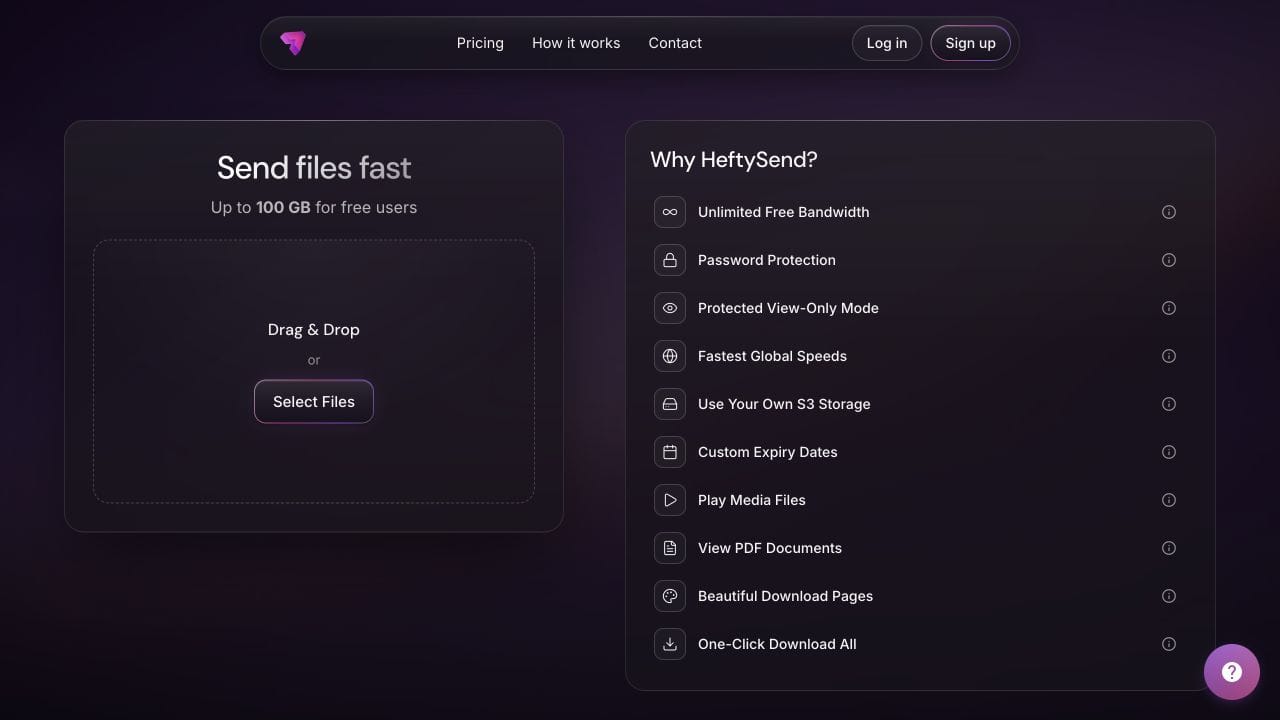
HeftySend Free supports up to 100 GB per transfer with three day expiry. Recipients do not need an account to download. Supported media previews help them recognise the videos before downloading, while your filenames and sheet explain which one to publish.
For a branded client handover, paid HeftySend plans include custom download pages. Premium supports up to 1 TB per transfer and expiry up to 365 days. Choose the size and collection period you need from the current HeftySend plans.

HeftySend does not charge for bandwidth usage. If you connect your own storage, the provider’s storage, request and delivery charges remain separate. Keep your own production masters and backups; a delivery link is not your archive.
What should your delivery message say?
Name the package, explain how to choose a file and state the collection deadline. Adapt this example to the actual delivery:
Launch v04 is ready. The package contains the approved horizontal 30 second film, vertical 15 second cut and square 15 second cut, plus the deliverables sheet. Please match the exact filename to your placement using that sheet. All three videos already contain English captions. Download the package before the stated expiry and tell me if the publishing team needs a different placement or specification.
Ask the recipient to confirm they have the required versions. If their brief changes after delivery, agree a replacement export and update the sheet. Do not leave two different files both labelled as the current approved version.
Frequently asked questions
Is vertical video always 9:16?
No. Vertical describes a frame that is taller than it is wide. Confirm the exact ratio and dimensions for the intended placement rather than treating the word vertical as a complete specification.
Can I rename a horizontal file to make it vertical?
No. Renaming changes the label, not the picture dimensions. Prepare and export the required version in your editing software, then check the resulting file.
Should I include every possible aspect ratio?
Deliver the versions agreed in the brief. Extra unrequested variants can make selection harder. If a new placement appears, confirm its requirements before adding another export.
Can the client crop the horizontal version themselves?
They can use suitable editing tools, but agree who owns that work and its approval. A crop may remove important content or change the layout of captions and graphics.
What if the same export serves two placements?
List both agreed placements against that exact filename in the delivery sheet. Confirm that the export meets both specifications before describing it as suitable for both.
Does HeftySend choose the right version for the client?
The handover instructions make that decision clear. Label the files and supply the destination mapping yourself so the recipient can select the approved export for their placement.
Give your client a package they can publish confidently: clearly named versions, a matching deliverables sheet and enough time to collect the files.